
Get started
Provision your first Arcane OS user on Linux
Build and verify the unsigned-local release, use an already-root Provisioner to stage and activate a standard Linux account, then complete native or WSLg sign-in.
Arcane OS can provision a standard local Linux account from an already-root Provisioner, but this is an experimental unsigned-local workflow for controlled development. Arcane never invokes sudo or PolicyKit for you, and this walkthrough does not claim complete clean-host account, PAM, display-manager, SSH, WSLg, or recovery support.
Every image below is a controlled Linux simulation. The images show the current labels and state transitions, change no real account, contain no credential, and are not native-host acceptance evidence. Never put a temporary password in a screenshot, operation log, chat, issue, source file, or automated clipboard stream.
Build the unsigned-local package
Use Node.js 22 or newer. From machine_bundles/arcane-os-machine-bundle on Debian or Ubuntu, install the native build dependencies:
sudo apt install -y build-essential pkg-config xdg-utils libgtk-4-dev libwebkitgtk-6.0-dev libjson-glib-dev
Install a machine-wide Ollama service separately if local AI is required. Arcane does not run a Linux package manager or remote installer at runtime.
Build the unsigned-local distribution:
npm run build:distribution:linux:unsigned-local-test
The output is written under dist/linux/. It is a local development package, not a production release.
Launch the Provisioner with separate root authorization
A regular-user launch is useful for inspecting the interface and machine status:
./start-provisioner.sh --allow-unsigned-local-release
It cannot change an installation, account, password, or login shell. Close it, establish a root graphical session using your distribution's administrator procedure, and launch the Provisioner from that separately authorized root session:
cd /absolute/path/to/machine_bundles/arcane-os-machine-bundle
./start-provisioner.sh --allow-unsigned-local-release
The way a root process is authorized to connect to a graphical session is distribution-specific. In the Provisioner, confirm that the displayed package is the unsigned-local build you just created and that permission status reports root scope before approving a machine change.
If Arcane is not installed, review and approve the separate installation confirmation. On native Linux, a fresh installation registers an Arcane OS X11 display-manager session and sets the next-boot systemd default to graphical.target only after its prerequisites verify. It does not switch the current session live. Under WSLg, installation does not register a display-manager session or change the boot target.
Choose a standard local account
Arcane accepts a complete local username supported by the platform. Choose a standard, non-root, non-service account that is not the account running the Provisioner and is not in an administrator group. A missing account can be created. An existing account must already be an active standard local account; a locked or expired existing account is reported so an administrator can resolve that state.
In Add Arcane users, enter the intended username and choose Add Arcane user.
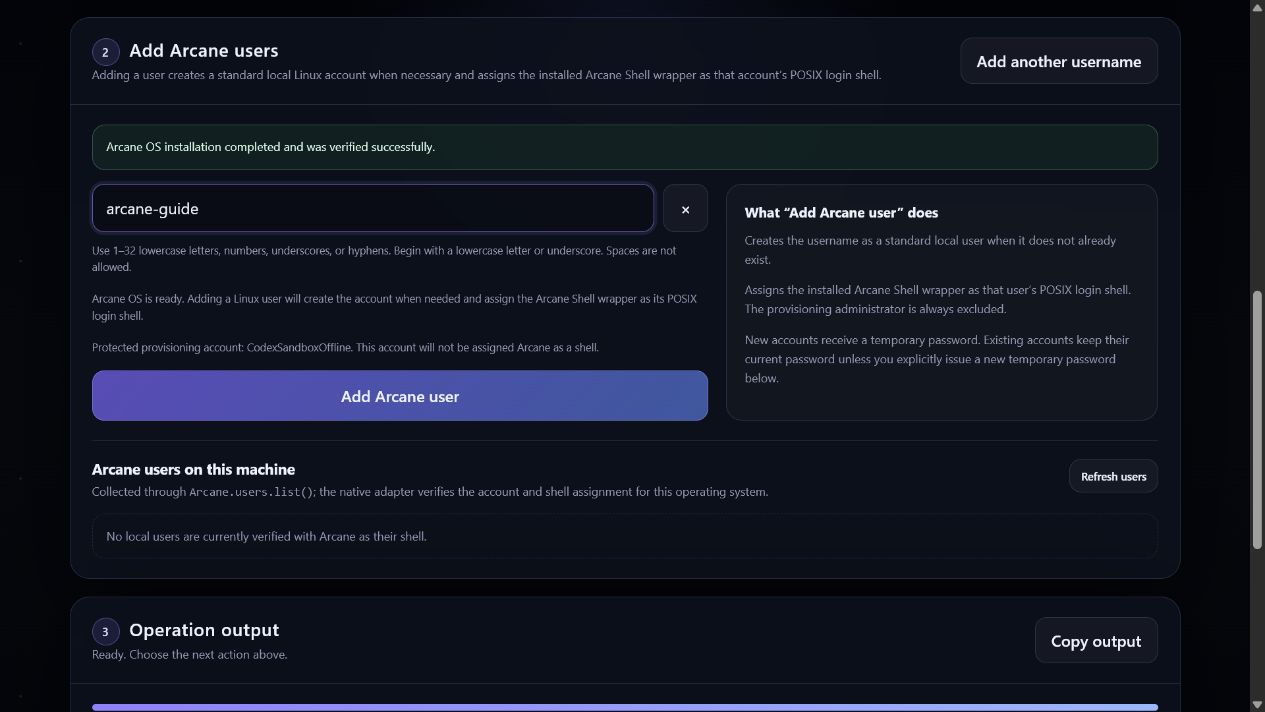
For a missing username, Arcane creates the standard local account with its login locked and its account expiry set in the past, records the account state, sets a temporary password that must change at first sign-in, and assigns the Arcane POSIX login-shell wrapper. The account stays locked and expired while the credential is delivered. Creating it does not silently activate it.
Save the credential, then activate
- Save the temporary password through an approved private path for the intended user. Arcane keeps it only in the running Provisioner session. Do not put it in operation output, diagnostics, screenshots, tickets, or automated clipboard history.
- Confirm that the account card says Account setup is not finished, Staged disabled, and Awaiting activation.
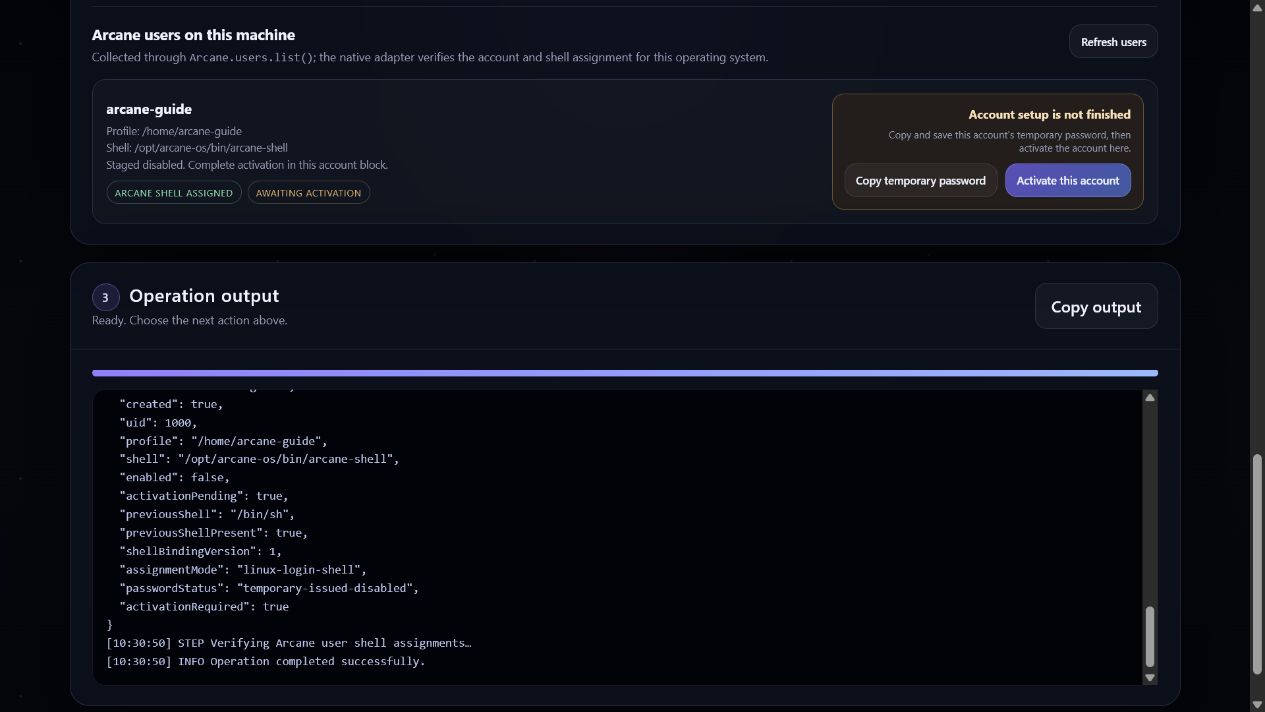
- Only after the credential is saved, choose Activate this account. Activation is a separate root-authorized request. It rechecks the recorded UID and assigned shell, removes expiry while retaining the locked precondition, and unlocks the account only after those checks succeed.
- Confirm that the same account is marked Arcane shell assigned and Enabled.
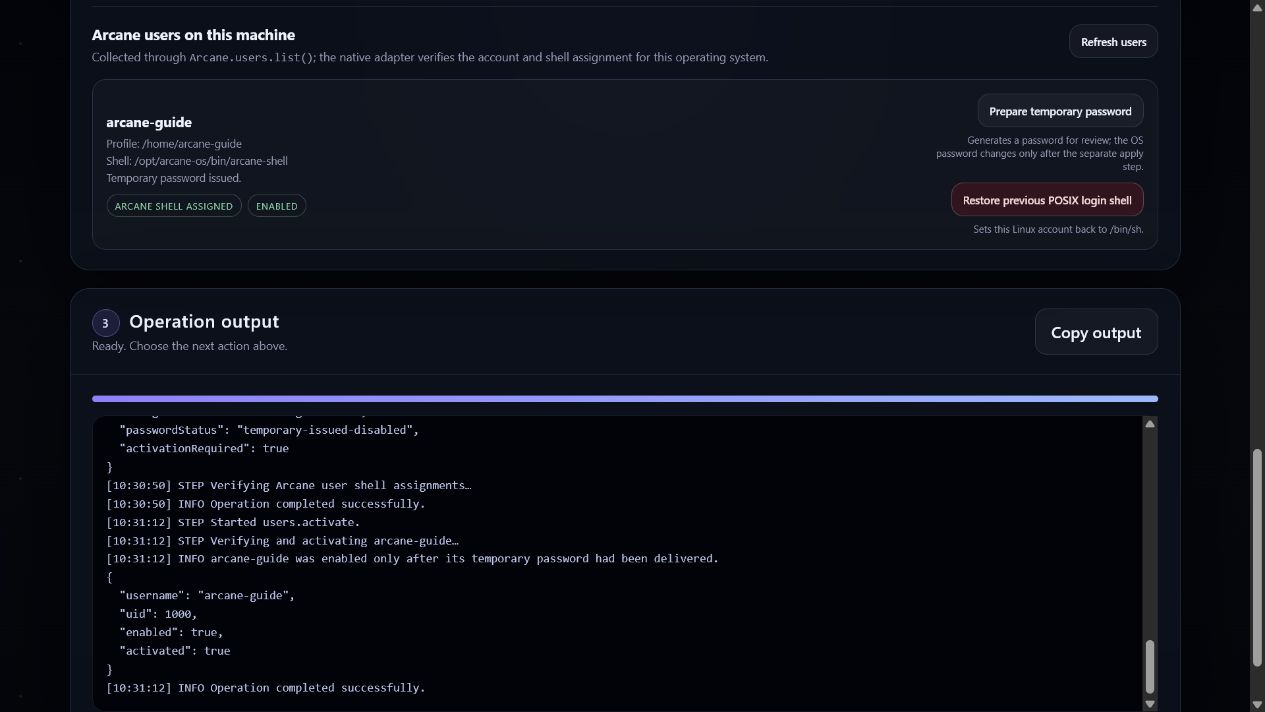
If the Provisioner session no longer has the staged credential, choose Issue new temporary password before activation. If activation fails, Arcane attempts to return the account to its locked and expired state; review the diagnostic and verify the account manually before retrying.
First sign-in on native Linux
- Sign out of the root or administrator session.
- At the distribution's display manager, choose the new account and select the Arcane OS X11 session. Arcane does not register a Wayland session because Arcane Shell is a client, not a compositor.
- Enter the temporary password privately and complete the PAM password change when Linux requires it. Do not automate, record, or screenshot either password screen.
- After Linux authenticates the account, Arcane Shell opens in that user's session. There is no Arcane username or password form.
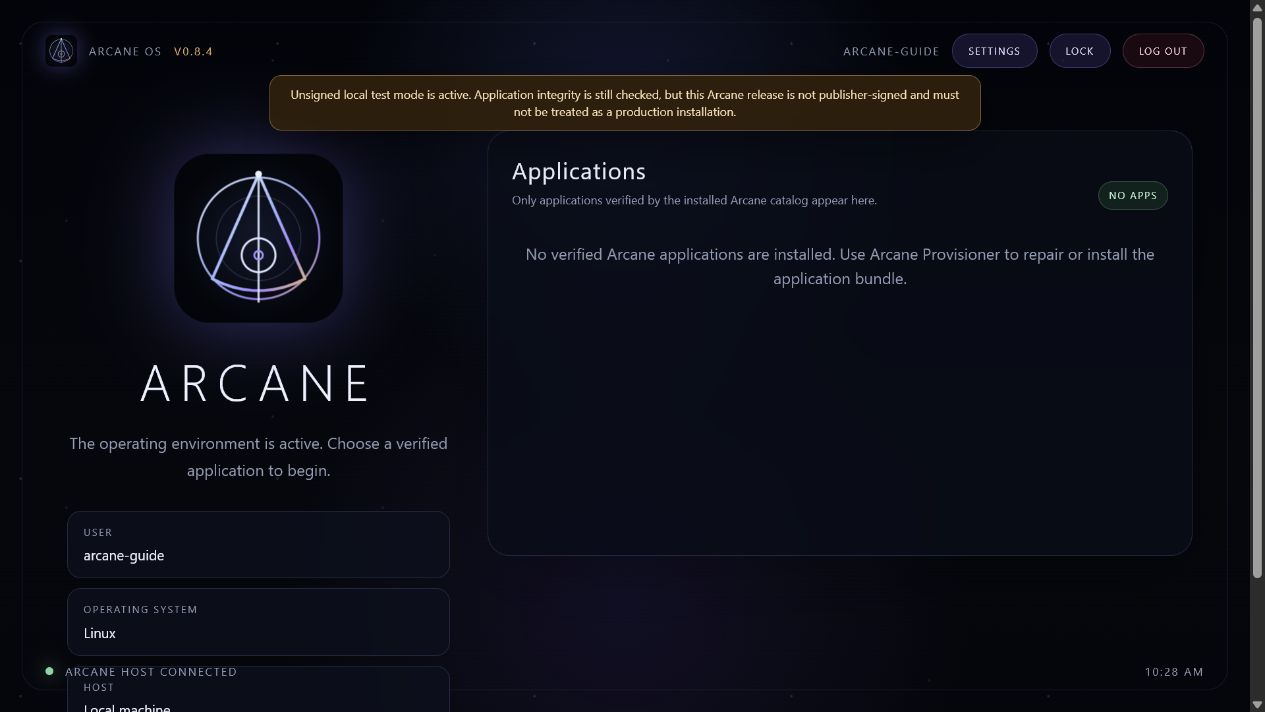
The controlled Shell capture uses an empty application catalog, so No apps is expected in that image. It demonstrates the operating-system identity and Shell startup behavior, not a populated Linux application bundle.
The assigned login-shell wrapper deliberately behaves differently without a graphical display. On a console or SSH login it delegates to /bin/bash or /bin/sh with the original arguments, preserving a terminal and recovery path instead of trying to open the desktop. This fallback reduces lockout risk but is not a substitute for real remote-login acceptance testing.
WSLg is a manual desktop launch
WSLg does not provide a Linux display manager. Arcane can perform the same standard-account transaction from a separately authorized root Provisioner, but it records manual-wslg, does not register an Arcane login session, and does not change WSL's boot target. Authenticate or select the Linux account through the normal WSL distribution flow, then open Arcane Shell from that account's Ubuntu session:
/opt/arcane-os/bin/arcane-shell
For explicit build-tree development before installation, use ./start-shell.sh --allow-unsigned-local-release instead. This flag is currently required by the shared Linux host for an unsigned local development launch; it is a compatibility input, not a general signing or security policy. The shared native GTK host defaults to WSLg's X11 compatibility path only when WSL2_GUI_APPS_ENABLED=1 and GDK_BACKEND is unset. Explicit backend choices remain unchanged. Authorize the root graphical session through the distribution's normal administrator mechanism.
If the Windows taskbar title contains [WARN:COPY MODE] but the window has no rendered pixels, save all work in every WSL distribution and close its GUI applications. From Windows Terminal run:
wsl --shutdown
That command terminates every WSL distribution, WSLg application, and background service. Reopen Ubuntu and launch Arcane again. The warning is a Microsoft WSLg graphics-redirection fallback, not an Arcane or clipboard mode; the GTK backend selection cannot repair an already-failed WSLg compositor session. See Install and run Arcane OS on Linux or WSL for the full troubleshooting boundary.
This is a manual WSLg desktop launch. It is not equivalent to selecting Arcane OS at a native display-manager sign-in.
Existing accounts, password reset, and shell recovery
Adding an active existing standard account preserves its current password and group memberships while assigning the Arcane wrapper. Arcane does not learn that password and does not stage or reactivate the account. If a temporary password is needed later:
- Choose Prepare temporary password. Arcane generates a credential for private review but does not change the operating-system password.
- Save the credential privately.
- Choose I saved this — apply password. Only this separate request changes the Linux password and marks it for change at next sign-in.
If the apply request never happens, the existing password remains unchanged.
Arcane records the prior POSIX login shell before assigning its wrapper. Use Restore previous POSIX login shell on the user card to stop using Arcane as that account's login shell. Restoration uses root authorization and the recorded account identity. If another administrator changed the shell after provisioning, Arcane reports that state instead of overwriting it. If the recorded previous shell no longer exists, install it or select a recovery shell manually before removing Arcane.