
Get started
Provision your first Arcane OS user on Microsoft NT
Use Arcane Provisioner to stage and activate a Microsoft NT account, then complete the first sign-in and open Arcane Shell.
Arcane OS supports the complete Microsoft NT first-user journey. An authorized administrator uses the native Arcane Provisioner; the new user later authenticates through Microsoft NT and enters Arcane Shell without a second Arcane login.
The screenshots below are controlled Microsoft NT simulations. They show the current labels and state transitions, but no real account was changed, no credential is visible, and the images do not establish clean-host acceptance. Never put a temporary password in a screenshot, operation log, chat, issue, source file, or automated clipboard stream.
Before you begin
- Use the Arcane Provisioner built for the selected development package. Confirm the displayed version and target installation path before continuing.
- Sign in as an authorized administrator. Provision a different account: Arcane protects the account currently running the Provisioner from shell replacement.
- Complete the Provisioner's requirement checks. The installed Arcane payload, native renderer, session control, and machine-wide Arcane Ollama service must be ready.
- Choose a standard, non-administrator local account name. Arcane can create a missing account or convert an existing standard account.
When install, update, or repair cannot complete
The Microsoft NT Provisioner includes a Danger zone with Start Fresh Install…. This recovery entry remains available after the lightweight Microsoft NT check even when full installation status fails and the normal Update or Repair action cannot appear.
Use it only when you intentionally want a clean machine-wide reinstall. It opens the protected installed ARCANE uninstaller; it does not silently delete files or begin a replacement installation. Review the scope, accept UAC, and type the exact confirmation only if you intend to permanently remove machine-wide ARCANE applications, runtimes, models, caches, and state. Windows accounts, profiles, personal files, LocalAppData, source repositories, and standalone Ollama remain.
Opening the native workflow is not proof that removal succeeded. After the uninstaller reports success, restart Microsoft NT, reopen the selected Provisioner package, and choose Install Arcane OS. If the installed controller is unavailable, ARCANE reports the recovery error without broadening deletion.
Stage the account
- Open Arcane Provisioner and review the operating-system, installation, and requirement status.
- If necessary, use the Provisioner's install, update, or repair action before adding a user. Approve a Microsoft NT elevation prompt only when its application, publisher, action, and target match what the Provisioner just described.
- In Add Arcane users, enter the intended username. Read the validation and protected-account message, then choose Add Arcane user.
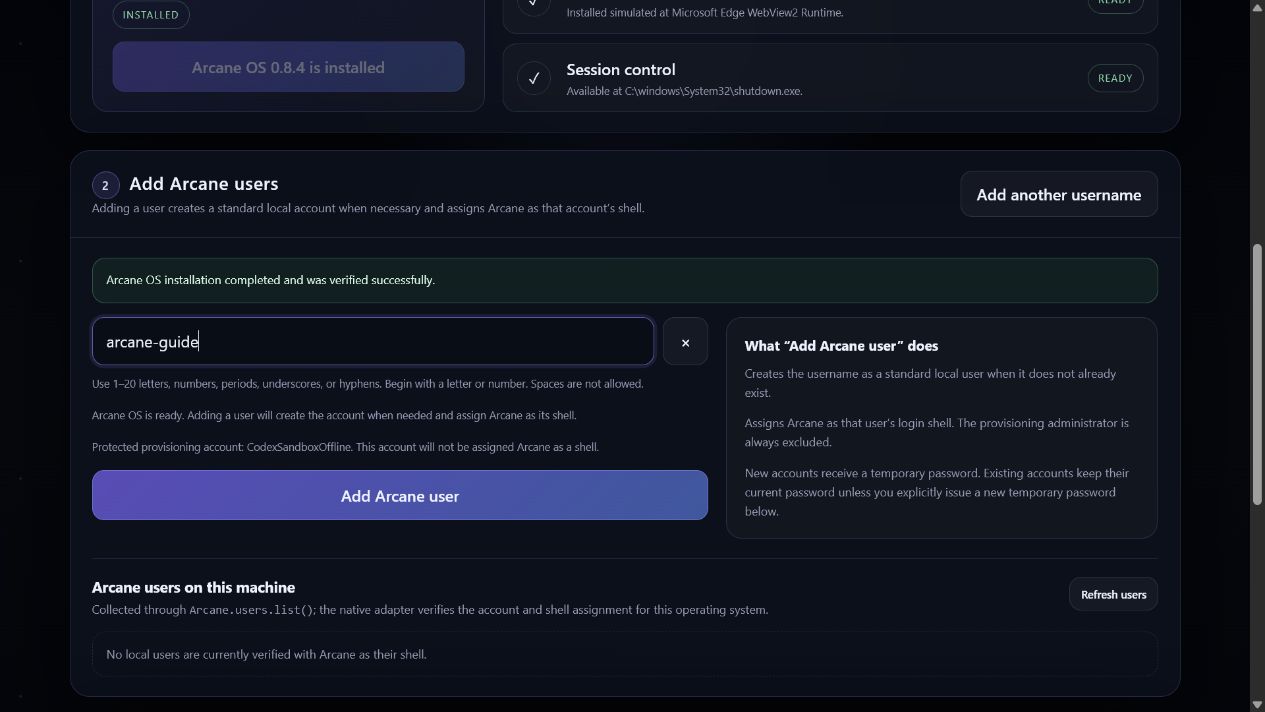
For a missing username, Arcane creates a disabled standard local account, prepares its profile, assigns Arcane Shell, requires a password change at first sign-in, and returns a temporary password. The account remains disabled and marked as awaiting activation. Creating the account does not silently activate it.
Save the credential, then activate
- Save the temporary password privately for the intended user. It exists only in the running Provisioner session. Do not continue until the credential has been saved through an approved private path.
- Confirm that the user card says the setup is not finished and the account is awaiting activation.
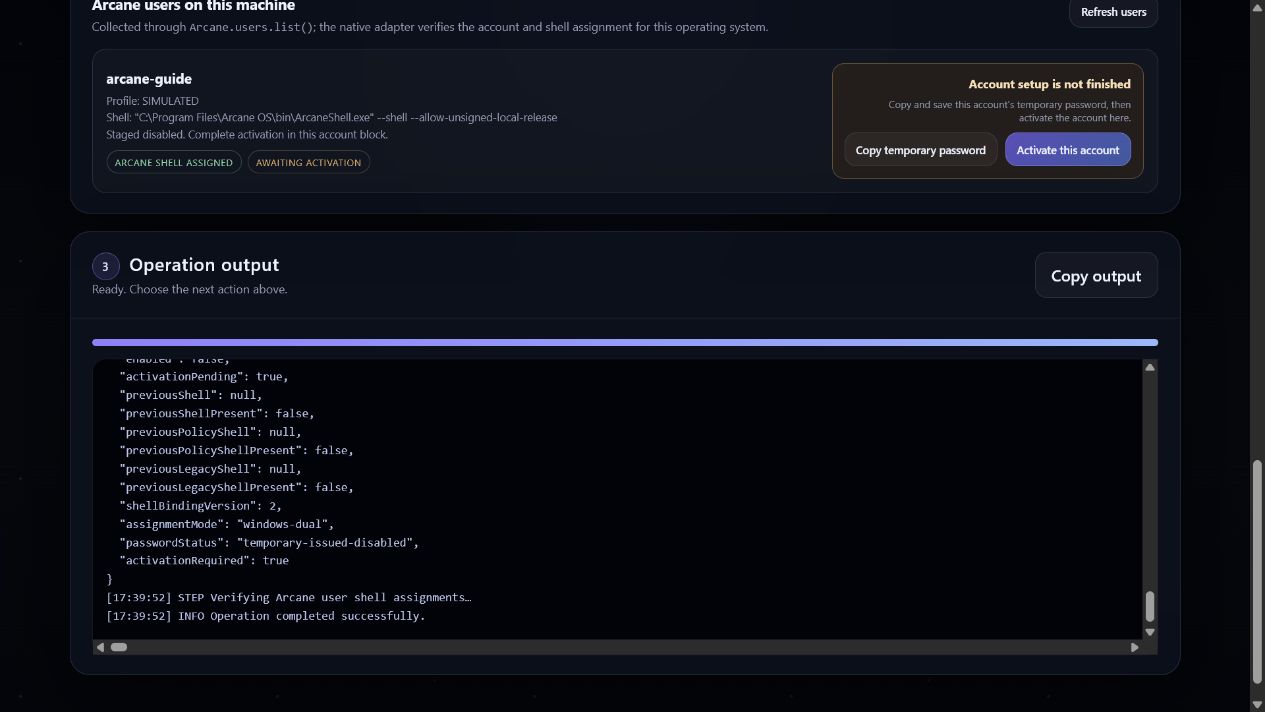
- Choose Activate this account on that user card. Activation is a separate privileged request and may cause a separate Microsoft NT elevation prompt.
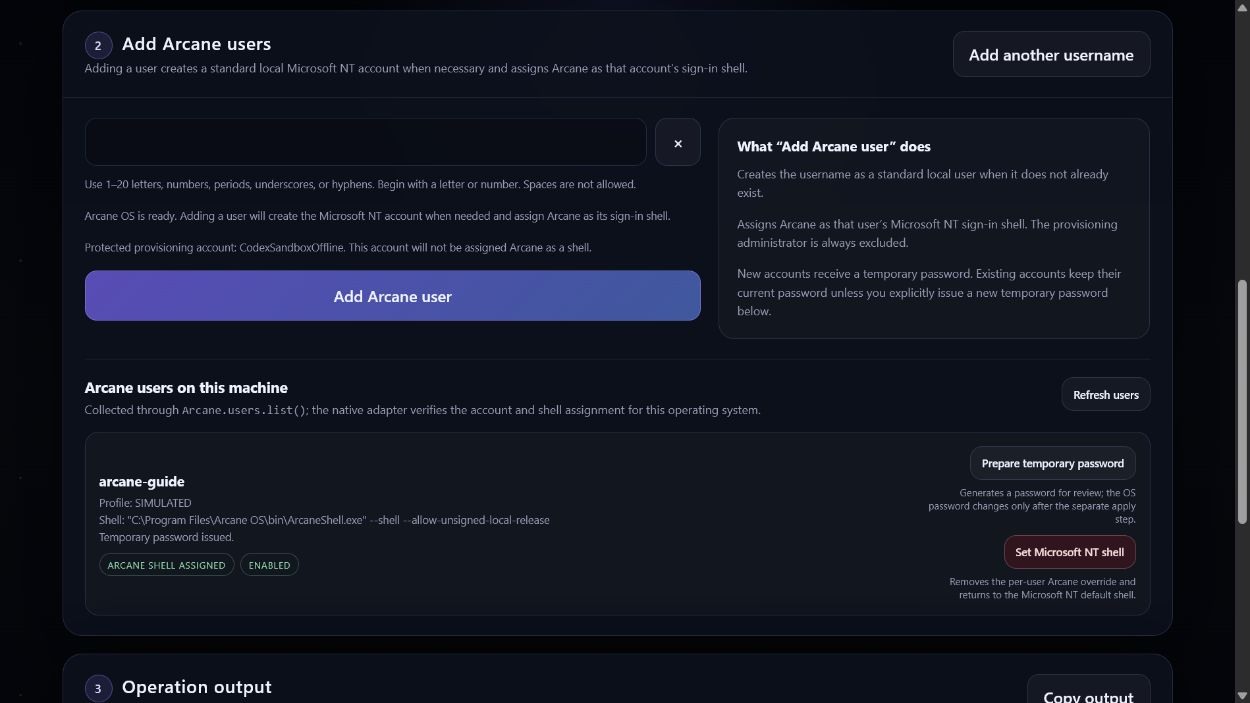
- Confirm that the same account is now marked Arcane Shell assigned and Enabled.
First sign-in
- Sign out of the administrator session. At the Microsoft NT sign-in screen, choose the new local account and enter the temporary password privately.
- Change the password when Microsoft NT requires it. Do not automate, record, or screenshot the password-entry or password-change screens.
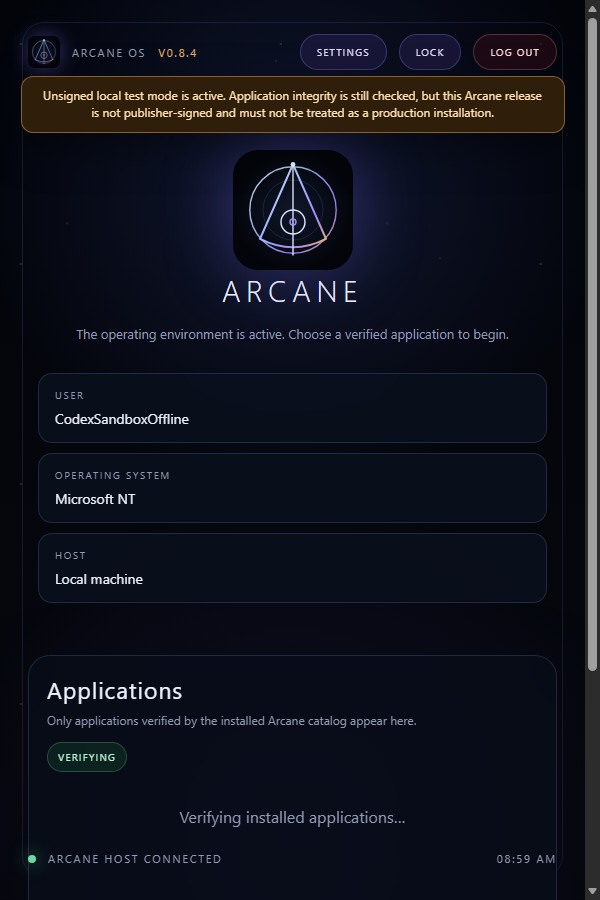
- After Microsoft NT accepts the sign-in, Arcane Shell starts as the user's shell. There is no Arcane username or password form. Open Settings and confirm that logout and the documented recovery path are reachable.
Existing accounts and password recovery
Adding an existing standard account preserves its current password and group memberships while assigning the supported Arcane shell bindings. If an active Arcane user's password is unknown:
- Choose Prepare temporary password. This prepares and displays a credential for private review; it does not change the Microsoft NT password.
- Save the credential privately.
- Choose I saved this — apply password. Only this separate privileged request changes the Microsoft NT password and requires a change at next sign-in.
If the apply request never happens, the old password remains unchanged. If activation fails, leave the staged account disabled and retry Activate this account. If the staged credential was not saved, choose Issue new temporary password before activation rather than exposing or guessing the original.